
Basics
Can an AI Chatbot Enhance Old Photos? What to Expect
By the Retrocap Team · Updated
TL;DR
Some AI chatbots, such as ChatGPT and Gemini, accept an uploaded photo and can edit it from a written prompt, so you can try one on a copy of an old family picture. Results vary, and any AI can change faces or invent details, so always compare with your original. A dedicated restoration app like Retrocap gives you named tools and options to choose from.
Yes, if the chatbot you use accepts image uploads, you can ask it to improve an old photo with a written prompt. Results vary, though, and any AI can change faces or invent details. So the real question is how to use these tools carefully, and when a different approach makes sense.
This guide explains what chatbots like ChatGPT and Gemini can reasonably be asked to do with an old photo, gives you an example prompt to try, and shows how to check the result before you trust it.
What a general-purpose chatbot can do with an old photo
ChatGPT and Gemini are general-purpose AI assistants. Some AI assistants that accept image uploads can edit them from a written request. For an old photo, you might ask for things like:
- Reducing fading or a yellow tint
- Softening small scratches or specks
- Making the picture a little clearer
- Adding color to a black and white image
Because the tool is general-purpose, you are in charge of the instructions. That is flexible, but it also means the wording of your request matters. A vague prompt can lead to bigger changes than you wanted.
Restore old photos with ChatGPT: a simple way to start
If you want to try it, a careful routine helps whichever chatbot you use.
- Start with a good copy. A sharp, evenly lit scan or phone copy gives any AI more to work with. If you have not made one yet, see our guide on how to scan old photos with your phone without glare.
- Keep your original file untouched. Work on a copy, so you can always go back.
- Ask for one kind of change at a time. Fixing fading first and color later is easier to judge than asking for everything at once.
- Say what must stay the same. Mention faces, clothing, and background so the AI knows you want them kept.
- Compare with the original. View both side by side and zoom in on faces, hands, and text.
- Try again with different wording if needed. Small changes in the prompt can change the result.
A ChatGPT photo restoration prompt you can try
Here is an example prompt. It is only a starting point, and no particular result is promised:
“This is a scan of an old family photo. Please gently reduce the fading and the light scratches. Keep every face, the pose, the clothing, and the background exactly as they are, and do not add anything that isn’t in the photo.”
You can adapt it to your picture. If the photo has a color cast, say so. If it is black and white and you want color, say you want natural, realistic color. If the first result changes someone’s face, try saying the faces must stay identical, or use a smaller request.
Restore old photos with Gemini
If your version of Gemini accepts image uploads, the approach is much the same. You upload a photo, write what you want in plain language, and review what comes back. The same routine applies: a clear scan, one change at a time, a note about what must not change, and a careful comparison.
Whichever assistant you choose, read its privacy information before uploading family photos.
What to watch for in any AI result
AI image editing works by predicting what a cleaner picture might look like. That is useful, but it has limits, and they apply to chatbots and dedicated apps alike:
- Faces can shift. Small, blurry faces are the most likely to change. A nose, a smile, or an eye shape may look slightly different from the real person. Our guide on how to unblur a face in an old photo covers this in more detail.
- Details can be invented. The AI fills in missing areas from the surrounding picture. A pattern on a dress or a sign in the background may be a guess rather than the truth.
- Missing parts may not come back. If a face or a large area is completely gone, no AI can reliably recover what was there.
- Color is an interpretation. Original colors were never recorded in a black and white photo, so any added color is a realistic guess, not a historical record.
- Results vary. Running the same request twice may give different outcomes.
For family history, treat an AI-edited picture as a helpful version, not as evidence. Keep the original alongside it. Please also use these tools respectfully with photos of other people, and never to deceive anyone or alter a document or a record.
If you would like to understand the technology behind all this, read What Is AI Photo Restoration? How It Works.
Chatbot vs. photo restoration app: how they differ
The main difference is how you steer the result. With a general-purpose chatbot, you describe what you want in your own words, and the wording shapes what you get. With a restoration app such as Retrocap, you pick from named tools and options instead. Both approaches use AI, and both call for a careful look at the result before you rely on it.
How Retrocap handles the same job
Retrocap is an AI photo restoration app for iPhone and Android that repairs, colorizes, sharpens, and animates old photos. It is free to download. Restoring, colorizing, enhancing, and animating photos uses credits (called tokens in the app), which come with a subscription or with one-time token packs.
With the Restore tool you choose a restoration level:
- Standard suits light or moderate damage, such as mild fading, small scratches, or a single clean tear.
- Deep suits heavy damage, such as long tears, several pieces, creases, stains, very pale photos, or a strong color cast.
Trying Standard first and switching to Deep if you need more is a sensible approach. You can also turn on Fix Scratches & Tears, Enhance Faces, and Remove Stains.
If a photo is soft rather than damaged, the Enhance tool offers Sharpen & Deblur, Fix Exposure, Color Correction, and Upscale x2. For black and white pictures, Colorize offers four color styles: Natural, Vivid, Vintage, and Cool.
Every result can be compared with the original, and you can save it to your photo library or share it.
A few honest notes about Retrocap:
- It needs an internet connection. Photos are processed on cloud servers, not on your phone, so it does not work offline.
- Photos are sent securely to an AI processing partner to create your results. They are used only to create your results and are never sold. You can delete your photos and data from the app at any time.
- Results usually arrive within seconds (usually under a minute, according to the site).
- Like any AI, it can slightly change facial features, especially on very small or very blurry faces. Always use the before/after comparison.
- Completely missing parts, such as a lost face, cannot always be recovered.
Results are saved in high resolution, suitable for sharing and for printing at common photo sizes.
Which should you try first?
Here is a simple way to decide:
- Make a clear scan or phone copy of one photo that matters to you.
- Try the example prompt in a chatbot if you want to see what a prompt-based edit looks like.
- Try the same photo in a restoration app if you prefer set tools and options.
- Compare each result with your original, especially the faces.
- Keep the version you trust, and keep the original file safe.
If the print itself is valuable, fragile, moldy, or badly damaged, do not try to clean or repair it yourself. A professional conservator is the right person to handle it. Scan it as it is, and do your digital work on the copy.
For a wider look at the whole process, including scanning, repair, and saving, read How to Restore Old Photos: A Complete Beginner’s Guide.
When you are ready, you can try Retrocap on one of your own photos at your own pace.
Frequently asked questions
Can ChatGPT enhance old photos?
If the chatbot you use accepts image uploads, you can ask it to improve an old photo with a written prompt. Results vary from one try to the next, and it may change faces or add details that were not in your original, so compare the result carefully.
What is a good prompt for restoring an old photo?
Describe the damage you want fixed and say what must stay the same. For example: "Gently reduce the fading and light scratches, and keep every face and background detail exactly as it is." Treat it as a starting point and adjust the wording if the result is not right.
Can Gemini restore old photos too?
Gemini is another general-purpose AI assistant, and the same approach applies if your version accepts image uploads. Upload a clear scan, describe one change at a time, and check the result against the original. As with any AI, results can vary and details may change.
Is a photo restoration app different from a chatbot?
A chatbot is a general tool you steer with your own wording. Retrocap is built for old photos and gives you named tools such as Restore, Colorize, Enhance and Animate, with options like Standard or Deep. Both are AI, and both need a careful before/after check.
Should I upload every family photo to an AI tool?
Only upload photos you are comfortable sharing, and read the privacy information of any service first. Be thoughtful with photos of other people, and keep your original or scan safe.
Related guides
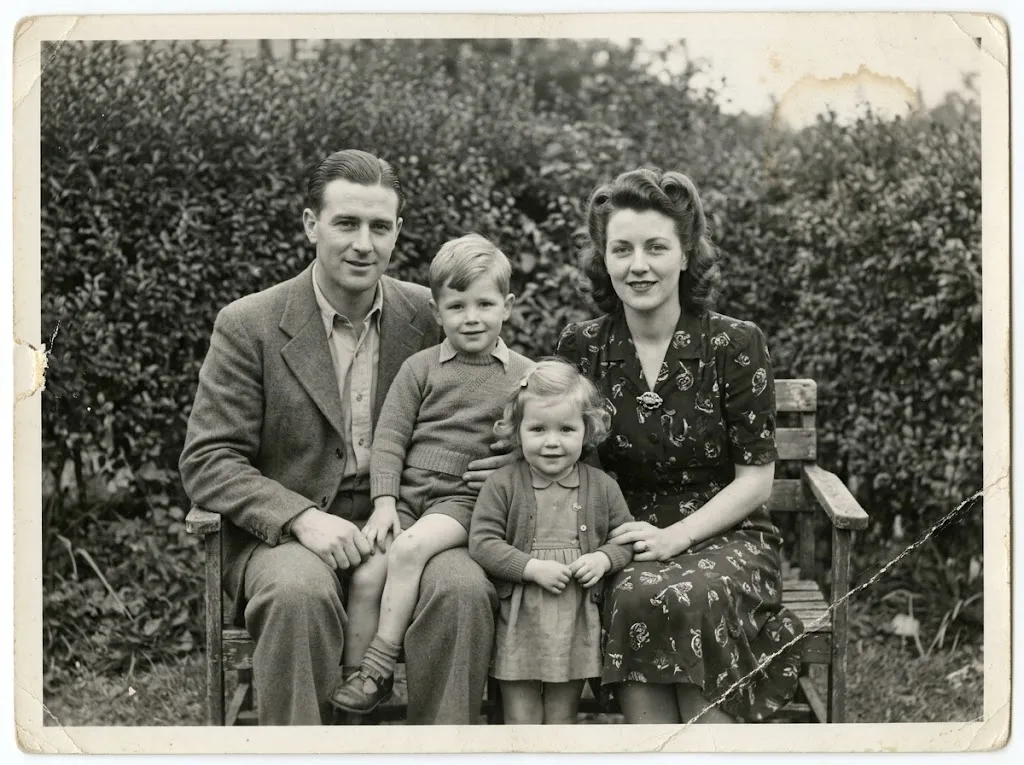 Before
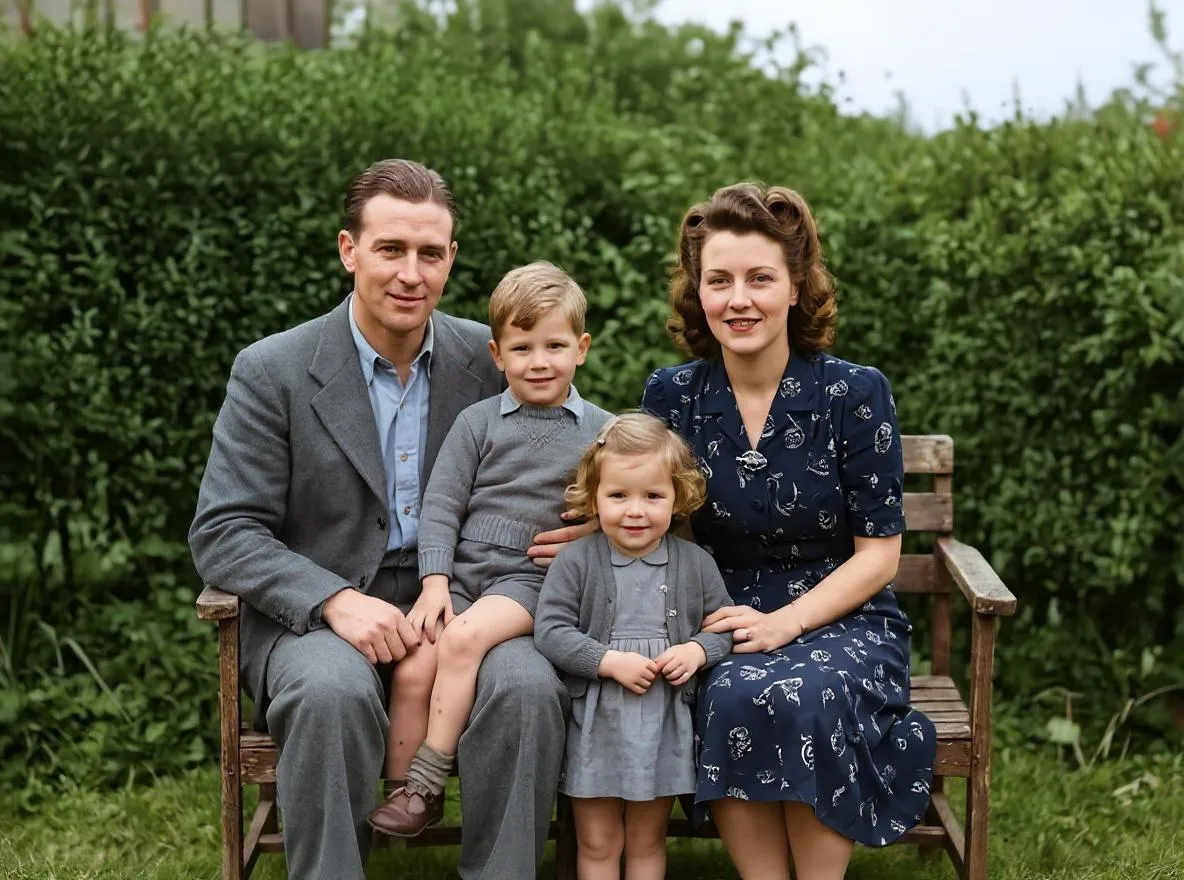 After
AfterBasics
What Is AI Photo Restoration? How It Works
How AI repairs scratches, tears, fading and blur in old photos, what it can and can't fix, and how it compares to manual retouching in Photoshop.
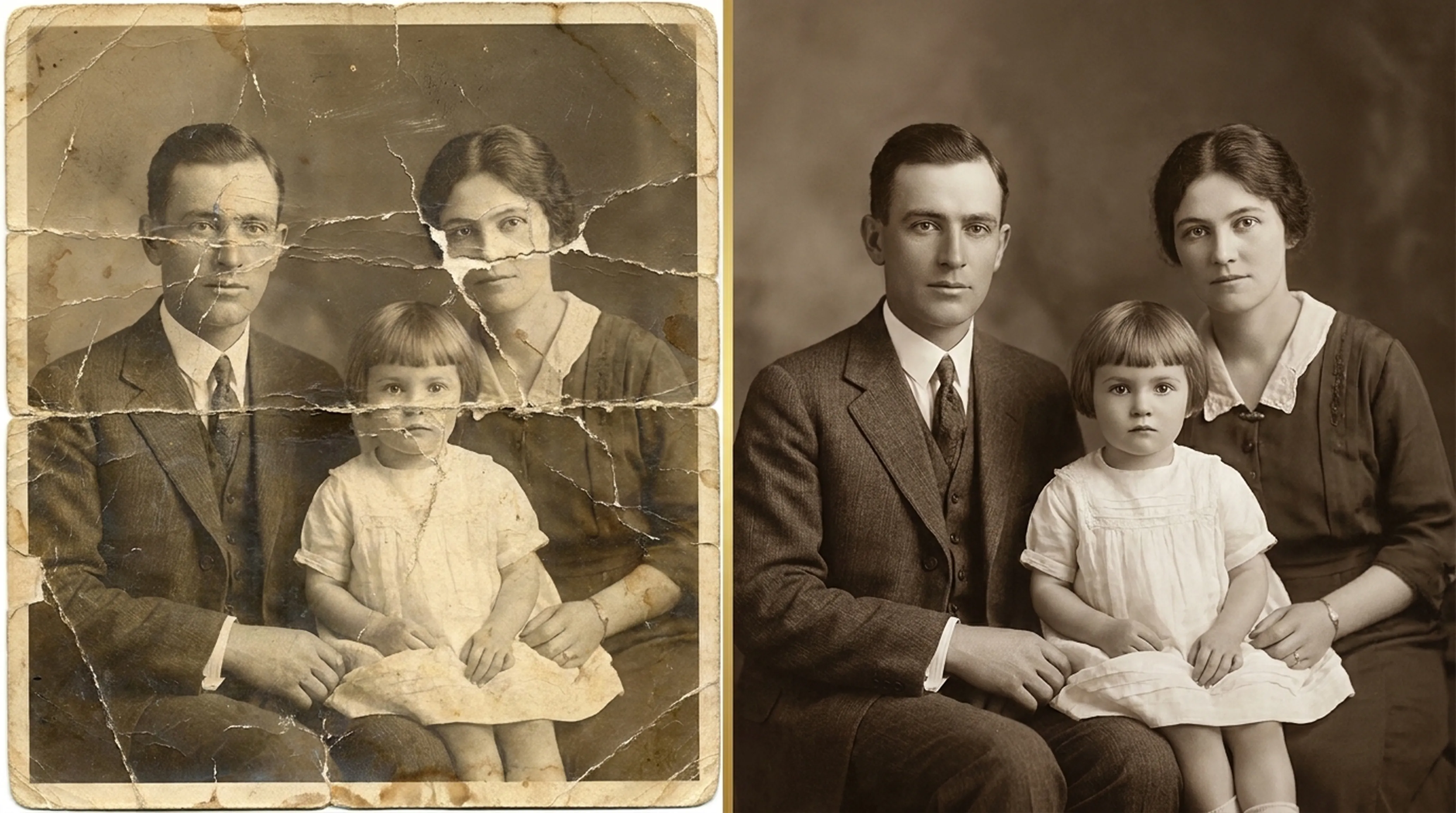
Beginner guide
How to Restore Old Photos: A Complete Beginner’s Guide
Step-by-step instructions on handling vintage prints, digitizing delicate negatives and using AI tools safely.
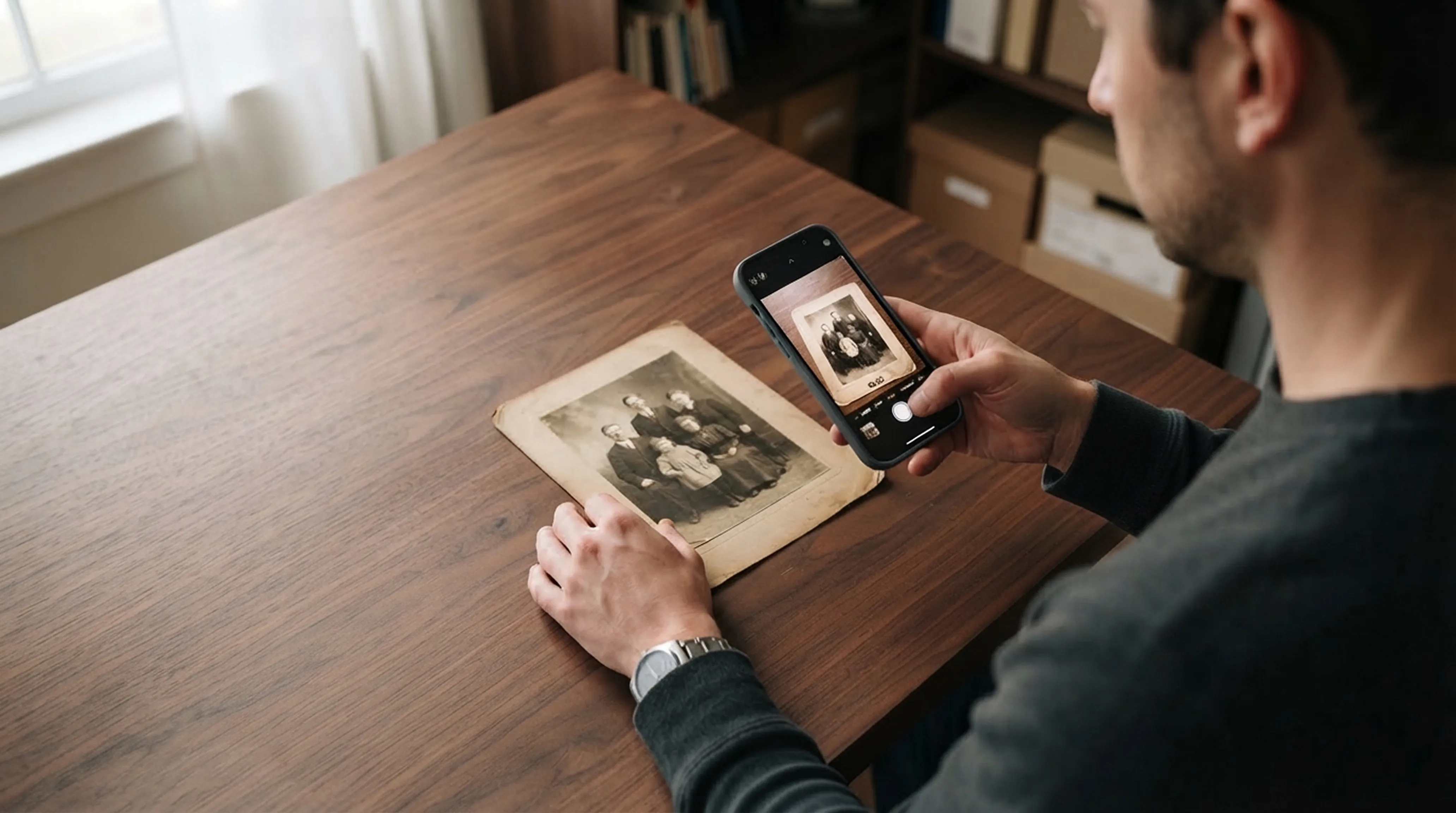
Scanning technique
How to Scan Old Photos with Your Phone Without Glare
Lighting tricks, angle secrets and lens cleaning practices for getting flatbed scanner quality from your smartphone.