
Vintage Photo Restoration: Bring Old Family Photos Back to Life
Vintage photos, from early 1900s sepia portraits to faded 1970s color snapshots, can be restored on your phone with Retrocap. Restore repairs scratches, creases, stains and fading, Colorize turns black-and-white and sepia photos into natural color, and Enhance Faces sharpens small or soft faces. Colorization is a realistic interpretation, because the original colors were never recorded.


Free to download · iPhone & Android · Private
How to restore a vintage photo
- 01
Photograph the print
Take the photo out of its frame or album if you can do so safely, lay it flat in soft daylight and photograph it from directly above without flash.
- 02
Restore first
Use Restore to repair scratches, creases, stains and fading. Start with Standard and switch to Deep for heavy damage.
- 03
Colorize or enhance
Colorize black-and-white or sepia photos with the Natural, Vivid, Vintage or Cool style, or use Enhance to correct faded colors and sharpen details.
Before and after
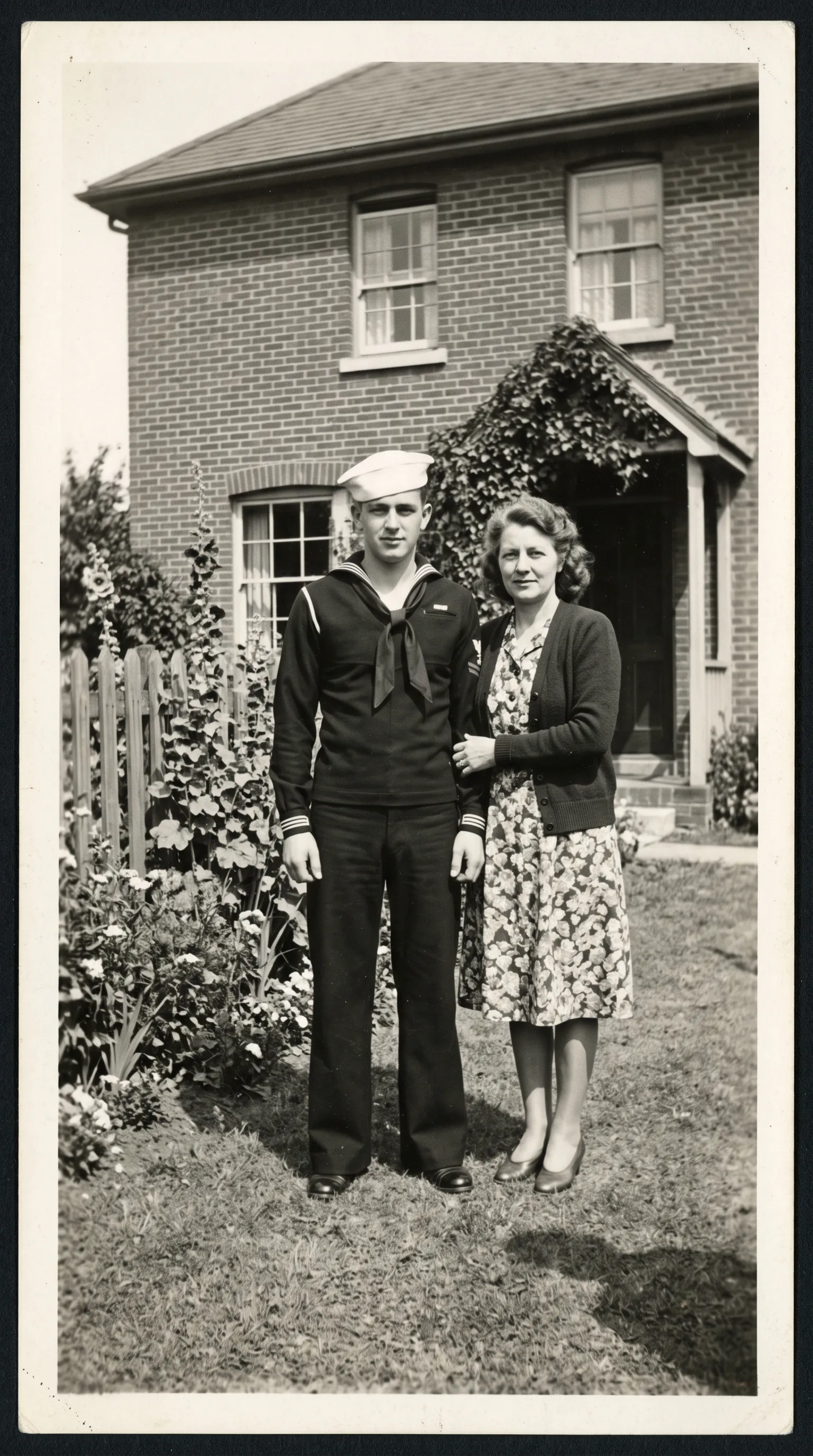
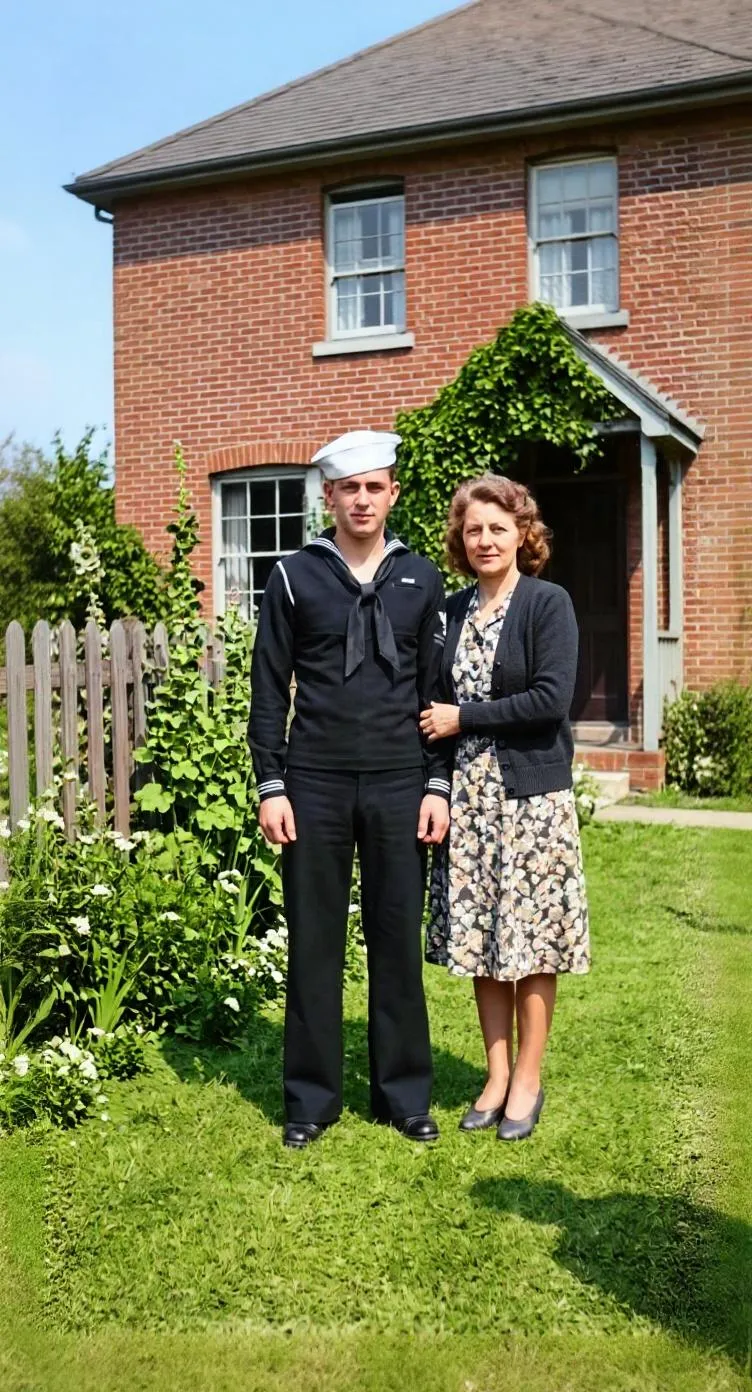
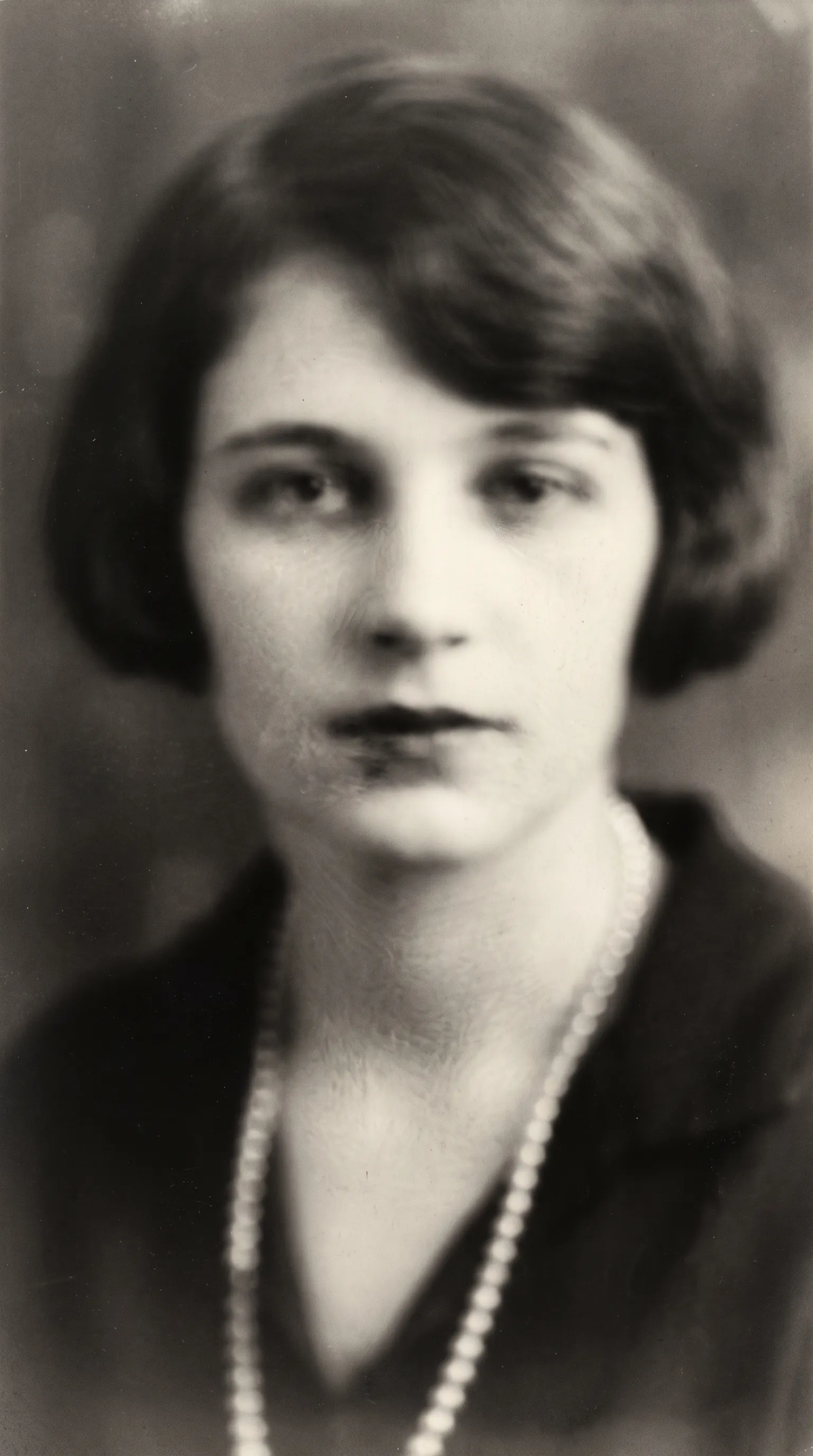

Common problems with vintage photos
Photos from different decades age in different ways. Knowing what you are looking at helps you choose the right setting.
| Era and type | Typical problems | Retrocap setting |
|---|---|---|
| Early 1900s sepia portraits | Fading, foxing spots, cracks, soft detail | Restore (Deep), Enhance Faces, Colorize |
| 1920s to 1950s black-and-white prints | Scratches, creases, small blurry faces | Restore with Fix Scratches & Tears, Enhance Faces, Colorize |
| 1960s to 1980s color prints | Fading, yellow, red or green color cast | Restore, then Enhance with Color Correction |
| Instant photos | Faded colors, scratches on the surface | Restore, then Enhance with Color Correction |
| Small wallet-size prints | Low detail, tiny faces | Enhance with Upscale x2, Enhance Faces |
Restoring sepia and black-and-white photos
Early portraits are usually sepia or black and white, and many have faded unevenly. Run Restore first, then try Colorize if you want a color version. Keep the black-and-white restoration too; many families like to have both. Read how to colorize sepia photos for more tips.
Fixing faded color prints
Color prints from the 1960s to 1980s often lose their blues and greens and turn red or yellow. Restore brings back contrast, and Color Correction in Enhance helps balance the colors. Our guide on how to restore faded photos explains the process.
Small faces and group photos
Vintage group photos often have very small faces. Enhance Faces sharpens them, but on very tiny or blurry faces AI can slightly change features. Always compare with the original.
Keep the story with the photo
A restored vintage photo means more when you know who is in it. Record names, dates and places as you restore, and see our page on family history and genealogy for ideas on building a family archive. If you plan to frame your restored photos, read about printing old photos.
Tools you'll use
Restore Old Photos
Repair fading, scratches, tears and stains in one tap.
Colorize Black and White Photos
Add realistic color to black-and-white and sepia photos.
Enhance Faces
Recover detail in blurry faces, even in group photos.
Animate Old Photos
Turn old portraits into short videos with natural motion.
Tips for vintage photos
- Remove photos from old magnetic albums or frames only if they come away easily. If a print is stuck, photograph it where it is.
- Photograph glossy prints at a slight angle or away from windows to avoid glare.
- Restore before you colorize, so scratches and stains aren't colored along with the photo.
- Ask older relatives about clothing, eye and hair colors. Their memories help you judge which color style looks right.
- Write names, places and dates for each restored photo while people still remember them.
Frequently asked questions
What counts as a vintage photo?
There is no strict definition, but people usually mean family photos from the early 1900s to around the 1970s or 1980s: sepia and black-and-white portraits, small snapshots, instant photos and early color prints.
Can Retrocap colorize vintage black-and-white and sepia photos?
Yes. Colorize turns black-and-white and sepia photos into color with four styles: Natural, Vivid, Vintage and Cool. The colors are a realistic interpretation, not a historical record, because the original colors were never captured.
Can faded vintage color photos be fixed?
Yes. Many color prints from the 1960s to 1980s have faded or turned yellow, red or green. Restore brings back contrast, and Enhance with Color Correction and Fix Exposure helps restore more natural colors.
Is it safe to restore precious vintage photos with an app?
Yes, because the app only works on a photo or scan of the print; the original is never touched. Photos are sent securely to an AI processing partner only to create your results, and you can delete your data in the app at any time.
Can I make a vintage portrait move?
Yes. Animate turns a portrait into a short video with subtle, natural movement, with optional voice narration. It works best on a restored photo with a clear, front-facing face.
Your family’s story deserves to be seen again.
Don’t let precious memories fade inside shoe boxes and dusty albums. Restore, colorize and cherish them today.