
Enhancement
AI Upscale Image: How to Enlarge a Photo on Your Phone
By the Retrocap Team · Updated
TL;DR
To upscale an image with AI, you give a small photo to an AI tool that enlarges it and adds plausible detail so it holds up on bigger screens and prints. In Retrocap, you choose Enhance and turn on Upscale x2. AI can't bring back detail that was never captured, so start from the sharpest copy you have and always compare the result with the original.
To upscale an image with AI, you open a small or low-resolution photo in an upscaling tool, which enlarges it and fills in new detail so it looks cleaner on a bigger screen or in a larger print. You can do it right on your phone.
The short answer: AI upscaling makes a photo bigger and adds believable detail, but it can’t recover what the camera never captured. It works best on photos that are small but reasonably sharp. A very small or very blurry photo may improve, but only so far.
What AI upscaling actually does
Every digital photo is a grid of tiny colored squares called pixels. A small photo has fewer of them. If you simply stretch it, the same pixels get spread over a larger area, and the picture turns soft or blocky.
An AI upscaler works differently. It studies the edges, textures and shapes in your photo, then draws new pixels that fit what is probably there: the line of a collar, the grain of a brick wall, the edge of an eyelash.
That is why it helps to understand one thing. The new detail is an educated guess. It often looks natural, but it is not a copy of what was really in front of the camera. Nobody can promise “no quality loss,” and you should be wary of any tool that does.
When upscaling helps most
Upscaling is a good fit when:
- A photo was scanned or copied at a small size, and you want to view it on a larger screen.
- You want to print an old photo larger than the original print.
- An image is small because it was sent through a messaging app or saved from an old email.
- A scan looks fine but a little rough when you zoom in.
It helps less when the photo is badly out of focus, shows heavy motion blur, or has a face that fills only a few dozen pixels. For blur, see our guide on how to fix blurry photos with AI instead of repeating it here.
How to upscale a photo on your phone with Retrocap
Retrocap is an AI photo restoration app for iPhone and Android, and it’s free to download. Its upscaling lives inside the Enhance tool. Here is the process:
- Get the best copy of your photo onto your phone. If the print is still in a drawer, a fresh, glare-free phone scan will beat a screenshot of a screenshot. Our guide to scanning old photos with your phone shows how.
- Open Retrocap and choose Enhance. Pick your photo from the library.
- Turn on Upscale x2. This enlarges the photo (2x).
- Add other options only if you need them. Sharpen & Deblur helps with softness, Fix Exposure helps with photos that are too dark or too bright, and Color Correction helps with color that has shifted.
- Start the process and wait. Results usually take seconds. You need an internet connection, because photos are processed on cloud servers.
- Compare with the original. Use the before/after view and look closely at faces, hands and any text.
- Save or share. The result goes to your phone’s photo library, saved without a watermark.
Restoring, colorizing, enhancing and animating photos in Retrocap uses credits, which the app calls tokens. They come with a subscription or with one-time token packs. Check the app for what applies in your country.
You can read more about the tool on the Enhance photo quality page.
Do you need to repair the photo first?
If your photo has scratches, tears or stains as well as being small, fix the damage first, then upscale. Enlarging a photo with a crease or stain can make the flaw bigger and more obvious.
In Retrocap, the Restore tool handles this. Standard is for light or moderate damage, and Deep is for heavy damage such as long tears or very pale photos. Options like Fix Scratches & Tears and Remove Stains target specific problems. Our complete beginner’s guide to restoring old photos walks through the whole sequence.
Tips for better results
- Start with the sharpest, most evenly lit copy. The better the source, the better the guess the AI can make.
- Upscale once, not over and over. Running the same photo through repeatedly may pile up odd textures and make faces look strange.
- Avoid already-compressed copies. Photos saved from chat apps or social media often carry blocky artifacts. If you can, go back to the original file or the print.
- Check faces carefully. AI can slightly change facial features, especially on very small or very blurry faces. Compare with the original before you save, particularly for photos of people you know well.
- Be realistic about tiny images. A thumbnail-sized picture may look better after upscaling, but small details like writing on a sign may stay unreadable or come out wrong.
Upscaling an old photo for printing
Printing is one of the most common reasons to enlarge a photo. A few general points:
- A print is judged by how close you hold it. A wall-sized print is usually viewed from farther away, so it can tolerate less fine detail than a small print you hold in your hand.
- Upscaling gives you more to work with, but it won’t turn a very small, very soft photo into a crisp poster.
- Retrocap saves results in high resolution, suitable for sharing and printing at common photo sizes. For larger prints, order a small test print first.
For general guidance, see our page on printing old photos.
How to choose an AI image upscaler
There are many upscalers out there, so a few questions help you choose without getting lost in claims:
- Does it promise perfection? Be careful with any tool that says it keeps all quality or recovers any detail. That isn’t how it works.
- Can you compare before and after? You should be able to inspect the result against the original.
- Is it built for old photos? A tool made for photos, including scratches, fading and faces, will usually suit family pictures better than one made for graphics or logos.
- How does it handle your photos? Look for a clear privacy policy and a way to delete your photos. In Retrocap, photos are sent securely to an AI processing partner to create your results, they are never sold, and you can delete your photos and data from the app at any time.
- How does pricing work? Check whether a tool uses credits, a subscription or both before you start.
A note on respect
If you’re enlarging a photo of someone else, such as a relative, a friend or a group, share it thoughtfully. Photos of people who have passed away can be especially meaningful, so take your time and keep their original in a safe place. An enlarged version is a copy to enjoy, not a replacement.
When you’re ready, you can try Upscale x2 in Retrocap on one photo and see what it does for you.
Frequently asked questions
What does it mean to upscale an image with AI?
It means making a photo larger while an AI model fills in new pixels based on the surrounding detail. Ordinary stretching only spreads existing pixels, which looks soft or blocky. AI adds believable detail, but it is an estimate, not a recovery of what the camera originally saw.
Will upscaling make a blurry photo sharp?
Not by itself. Upscaling changes size, while blur is a separate problem. In Retrocap you can combine Upscale x2 with Sharpen & Deblur in the Enhance tool, but a very blurry photo will still have limits.
Can I upscale a tiny or heavily pixelated image?
Yes, and it may look better afterward. But fine detail that was never captured, such as small text or the features of a tiny face, cannot be recovered. Check faces against the original, because AI can slightly change them.
Does Retrocap work without an internet connection?
No. Photos are processed on cloud servers, so you need an internet connection. Your photos are used only to create your results and are never sold. You can delete your photos and data from the app at any time.
Related guides
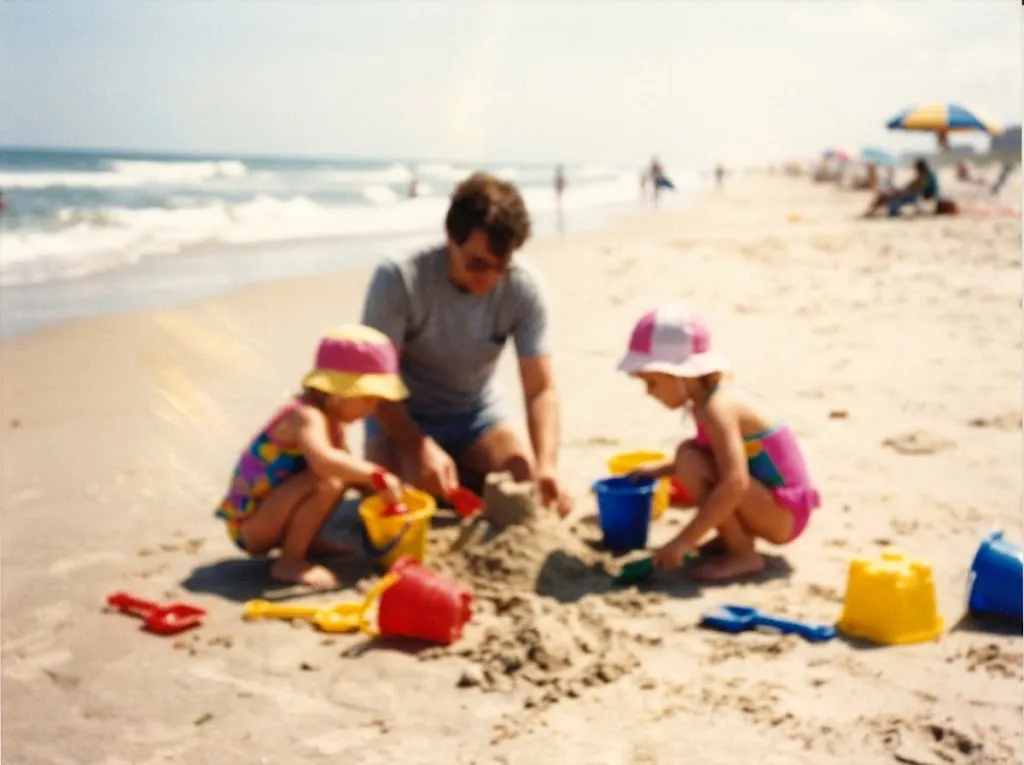 Before
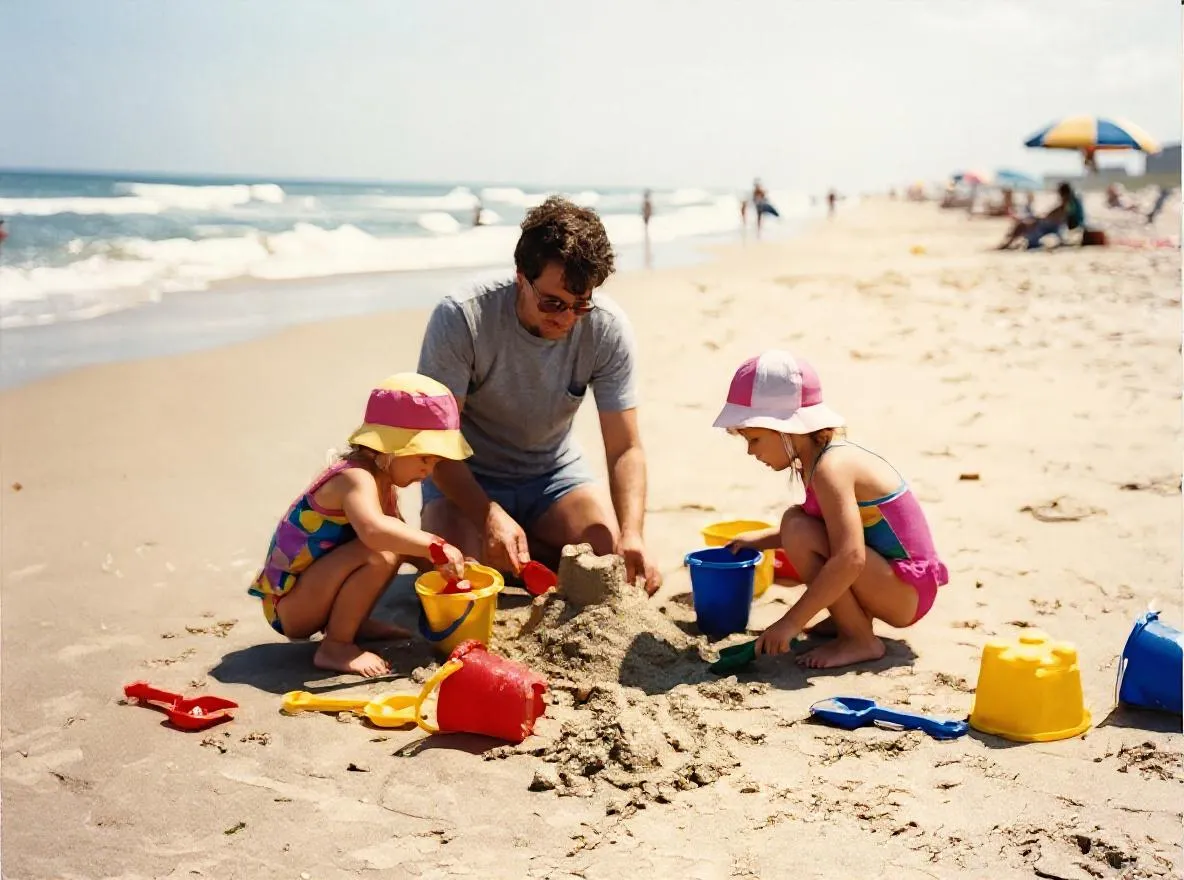 After
Enhancement
How to Fix Blurry Photos with AI
Why old photos look blurry and how AI sharpening and upscaling fix them. Get the sharpest result from Retrocap's Enhance tool on iPhone or Android.
Scanning technique
How to Scan Old Photos with Your Phone Without Glare
Lighting tricks, angle secrets and lens cleaning practices for getting flatbed scanner quality from your smartphone.
Beginner guide
How to Restore Old Photos: A Complete Beginner’s Guide
Step-by-step instructions on handling vintage prints, digitizing delicate negatives and using AI tools safely.