
Enhancement
How to Unblur a Photo with AI: Motion vs Focus Blur
By the Retrocap Team · Updated
TL;DR
To unblur a photo, first work out whether it has focus blur (soft all over) or motion blur (streaked in one direction). Then run it through an AI deblur tool such as Retrocap's Enhance with Sharpen & Deblur on. Mild to moderate blur improves well. Severe blur can only be partly fixed, and AI cannot reliably recover unreadable text or tiny details.
To unblur a photo, first find out what kind of blur you have, then use an AI deblur tool to sharpen it. Focus blur and mild motion blur respond well. Heavy blur can only be improved, not fully undone.
The short answer: AI unblurring works by rebuilding edges and fine detail from what is still visible in the picture. It does best on photos that are a little soft or slightly shaky. In Retrocap, you open the Enhance tool and turn on Sharpen & Deblur.
This guide shows you how to tell the two main kinds of blur apart, how to unblur a picture step by step, and what to expect from the result.
Motion blur vs focus blur: how to tell them apart
Not all blur is the same, and knowing which one you have helps you set realistic expectations.
| Focus blur | Motion blur | |
|---|---|---|
| What it looks like | Soft and even, like looking through a foggy window | Streaks, smears or “ghost” edges in one direction |
| Common cause | Camera focused on the wrong spot, a low-quality lens, a small or low-resolution copy | Camera shake, a moving subject, a slow shutter in dim light |
| Where you see it | Everything, or the main subject, looks soft | Often only part of the photo, such as a moving child or hand |
| How well AI can help | Often a clear improvement | Good for mild shake, limited for long streaks |
A quick test: zoom in on a sharp-edged object, like a window frame or a button. If its edges are fuzzy in every direction, it’s focus blur. If the edges are doubled or smeared along one line, it’s motion blur.
Old family prints often have both. A snapshot from decades ago may have been slightly out of focus when taken, and then lost more sharpness when it was printed, stored and scanned.
Check the source before you blame the photo
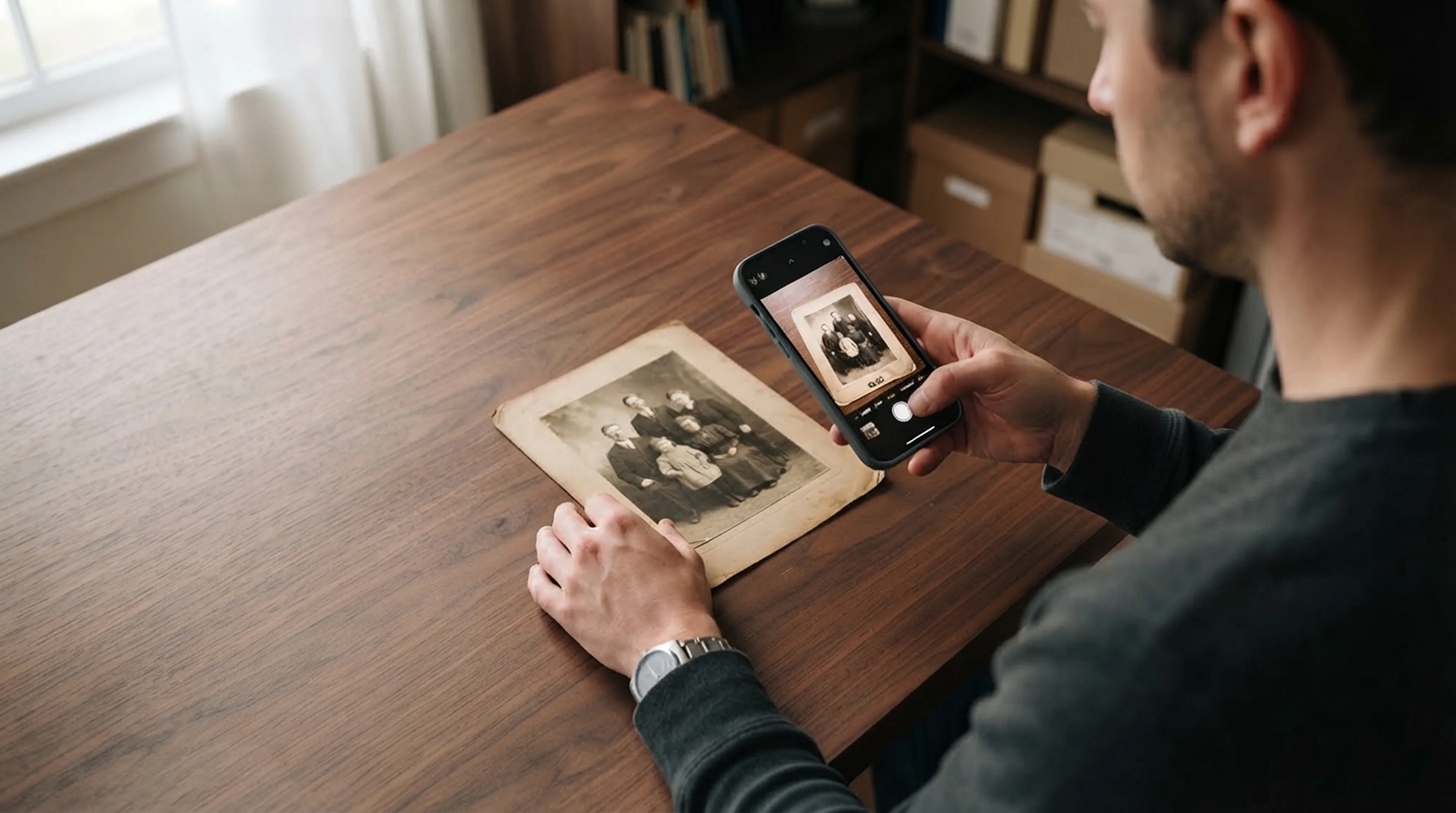
Sometimes the picture isn’t the problem. The copy of it is. If you photographed a print with your phone, the blur might come from your shot, not the original.
- Retake the picture in bright, even light, holding the phone parallel to the print.
- Let the camera focus by tapping the screen on the photo before you shoot.
- Avoid zooming in digitally. Move the phone closer instead.
A sharper, evenly lit copy gives better results, so this step can matter more than any tool. Our guide on scanning old photos with your phone covers glare, angle and lighting in detail.
How to unblur a photo with Retrocap
Retrocap is an AI photo restoration app for iPhone and Android. Here is how to unblur a picture with it:
- Get the photo on your phone. Retrocap works on a normal (positive) photo that is already in your phone’s library. If you have a print, take a clear, well-lit shot of it first.
- Open Retrocap and choose Enhance. This is the tool for sharpness and clarity.
- Select your photo from your library.
- Turn on Sharpen & Deblur. This is the option that targets soft and shaky images.
- Add other options only if needed. Fix Exposure helps if the photo is also too dark or too bright. Color Correction helps with a color cast. Upscale x2 can help if the photo is small.
- Start the process and wait. Results usually take seconds, and usually under a minute. You need an internet connection, since photos are processed on cloud servers.
- Compare with the original. Use the before/after comparison and zoom in on faces, hands and edges. Check that nothing looks odd.
- Save or share. Results are saved to your phone’s photo library without a watermark.
You can read more about this tool on the Enhance photo quality page. For a broader walkthrough of sharpening soft pictures, see how to fix blurry photos with AI.
What to do for blurry faces
Faces are where blur is most noticeable, and also where AI is most likely to change things. In a very small or very blurry face, the result can slightly alter features such as the eyes or mouth, so always compare with the original and ask whether it still looks like the person.
If the main problem is a face, our guide on how to unblur a face in an old photo goes deeper. In Retrocap’s Restore tool you can also turn on Enhance Faces. There is a dedicated page on enhancing faces in old photos too.
If the photo is blurry and also damaged, such as scratched, faded or stained, it can help to deal with the damage first. Our complete beginner’s guide to restoring old photos explains the order to work in.
What AI can and can’t unblur
Being honest about limits will save you disappointment.
What usually works well:
- Slightly soft family snapshots
- Mild camera shake
- Small, low-resolution copies that look smeary
- Old prints that lost crispness over time
What is harder or not realistic:
- Heavy motion blur. If a subject is a long streak, there isn’t enough information left to rebuild it accurately.
- Missing detail. AI rebuilds areas from surrounding detail. Parts that are completely gone, like a face turned away or lost to blur, cannot always be recovered.
- Text, numbers and license plates. AI fills in plausible shapes, so it may produce letters or digits that were never in the photo. Don’t count on it to read blurred writing.
- Hidden or censored content. Don’t use AI to try to reveal hidden or censored content.
That last point matters ethically as well. Never use AI to alter evidence, fake documents or deceive anyone. A sharpened picture is an interpretation, not proof of what the original showed.
Unblur a photo online or in an app?
Many people search for ways to unblur a photo online or to unblur an image for free. A few honest notes:
- Retrocap is an app, not a website. It runs on iPhone (iOS 16.4 or later) and Android (7.0 or later). There is no browser or desktop version.
- Retrocap is free to download, but enhancing a photo uses credits (called tokens in the app). Credits come with a weekly or yearly subscription, or with one-time token packs if you prefer no subscription.
- Your phone’s built-in photo editor probably has a sharpen slider. A basic sharpen slider can add some crispness to slightly soft pictures, but it has limits.
On privacy: your photos are used only to create your results. They are sent securely to an AI processing partner, they are never sold, and you can delete your photos and data from the app at any time.
Tips for the best result
- Start with the best copy you have. A higher-quality scan or a straight, well-lit phone shot beats a screenshot or a photo of a photo.
- Don’t run the same photo through again and again. Over-sharpening can create a crunchy, artificial look. Do one pass, compare, and stop if it looks good.
- Try one change at a time. If Sharpen & Deblur alone is enough, you don’t need to add more options.
- Fix darkness separately if needed. A dim photo hides detail and can look blurrier than it is. See how to fix dark old photos for that.
- Keep the original. Always keep your untouched copy so you can go back to it.
- Be respectful with other people’s photos. If a picture shows someone else, think about whether they would be comfortable with you editing and sharing it.
If you have an old photo that feels a little too soft, you can try Sharpen & Deblur in Retrocap and compare the result with your original.
Frequently asked questions
Can AI unblur any blurry photo?
No. AI can noticeably sharpen mild to moderate blur by rebuilding detail from what is still visible. When the blur is severe, the missing detail is guessed rather than recovered, so the result may look sharper but not exact.
What is the difference between motion blur and focus blur?
Focus blur makes the whole photo, or the subject, look soft and even. Motion blur leaves streaks or ghosting in one direction because the camera or the subject moved while the picture was taken.
Can I unblur text, license plates or hidden content?
Don't count on it. AI fills in plausible detail, so it can invent letters or numbers that were never there. Use AI only to improve your own photos, never to reveal hidden content or alter evidence.
Can I unblur a photo online in a browser with Retrocap?
No. Retrocap is an app for iPhone (iOS 16.4 or later) and Android (7.0 or later), with no web or desktop version. It needs an internet connection because photos are processed on cloud servers.
Is Retrocap free to download, and what does unblurring cost?
Retrocap is free to download. Enhancing a photo uses credits (called tokens in the app), which come with a weekly or yearly subscription or with one-time token packs bought in the app.
Related guides
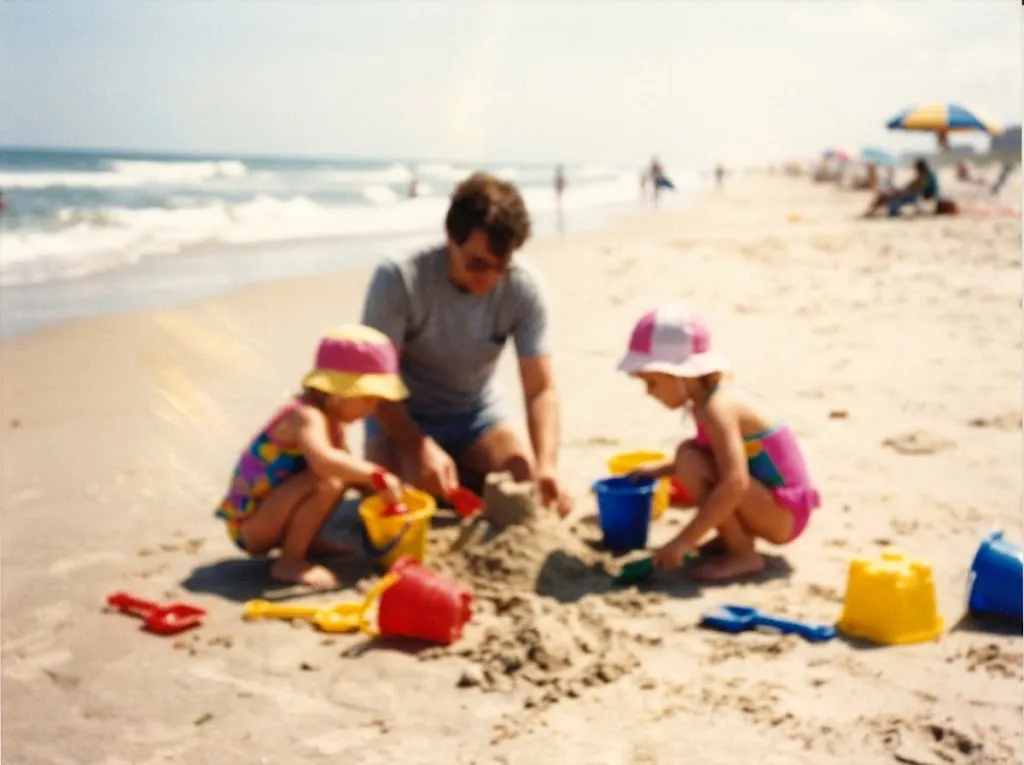 Before
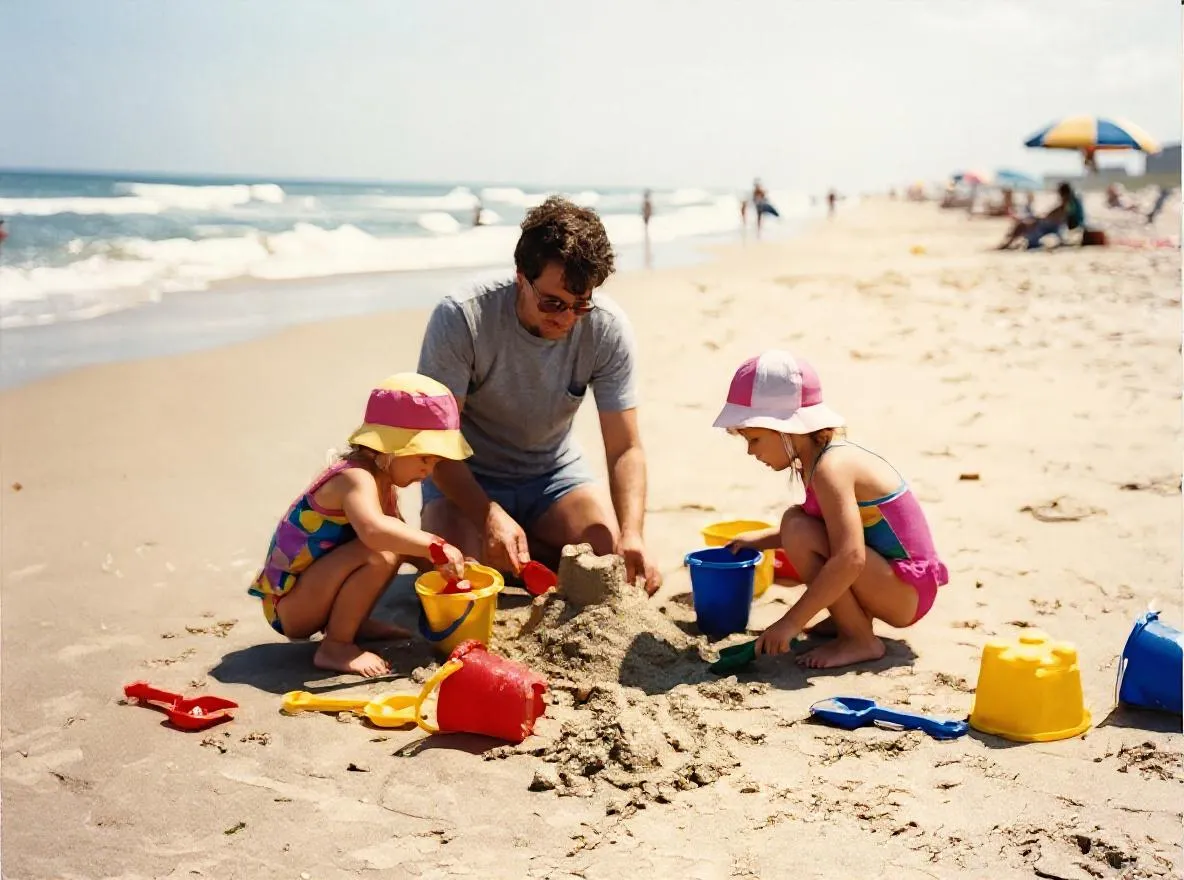 After
Enhancement
How to Fix Blurry Photos with AI
Why old photos look blurry and how AI sharpening and upscaling fix them. Get the sharpest result from Retrocap's Enhance tool on iPhone or Android.
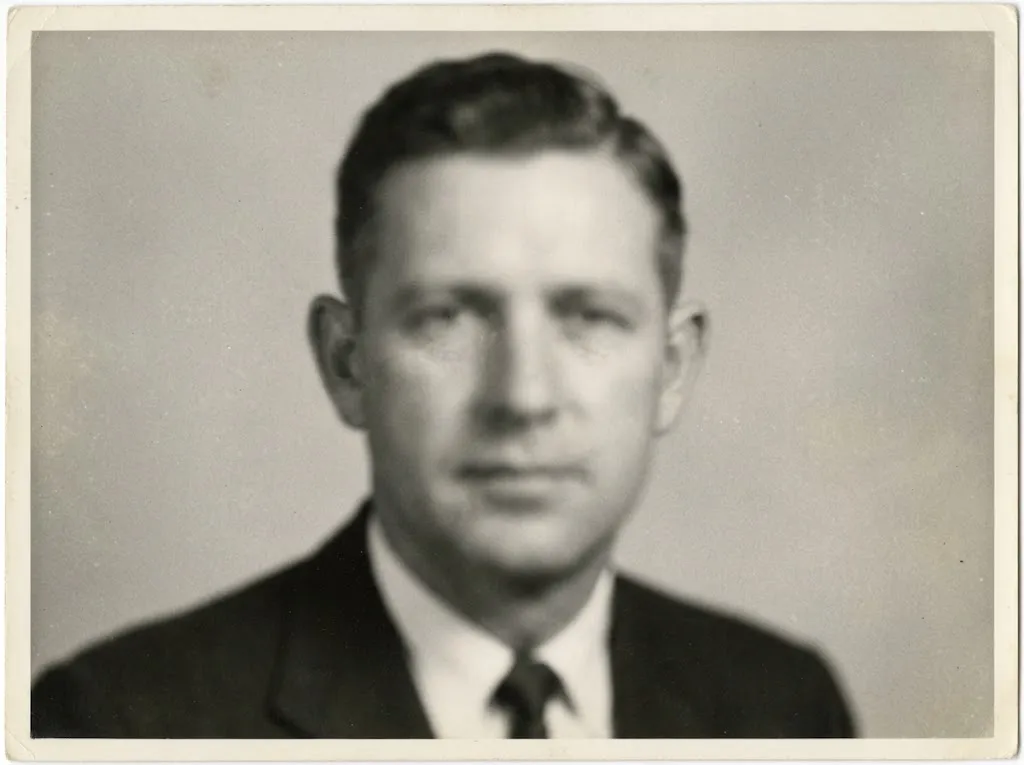 Before
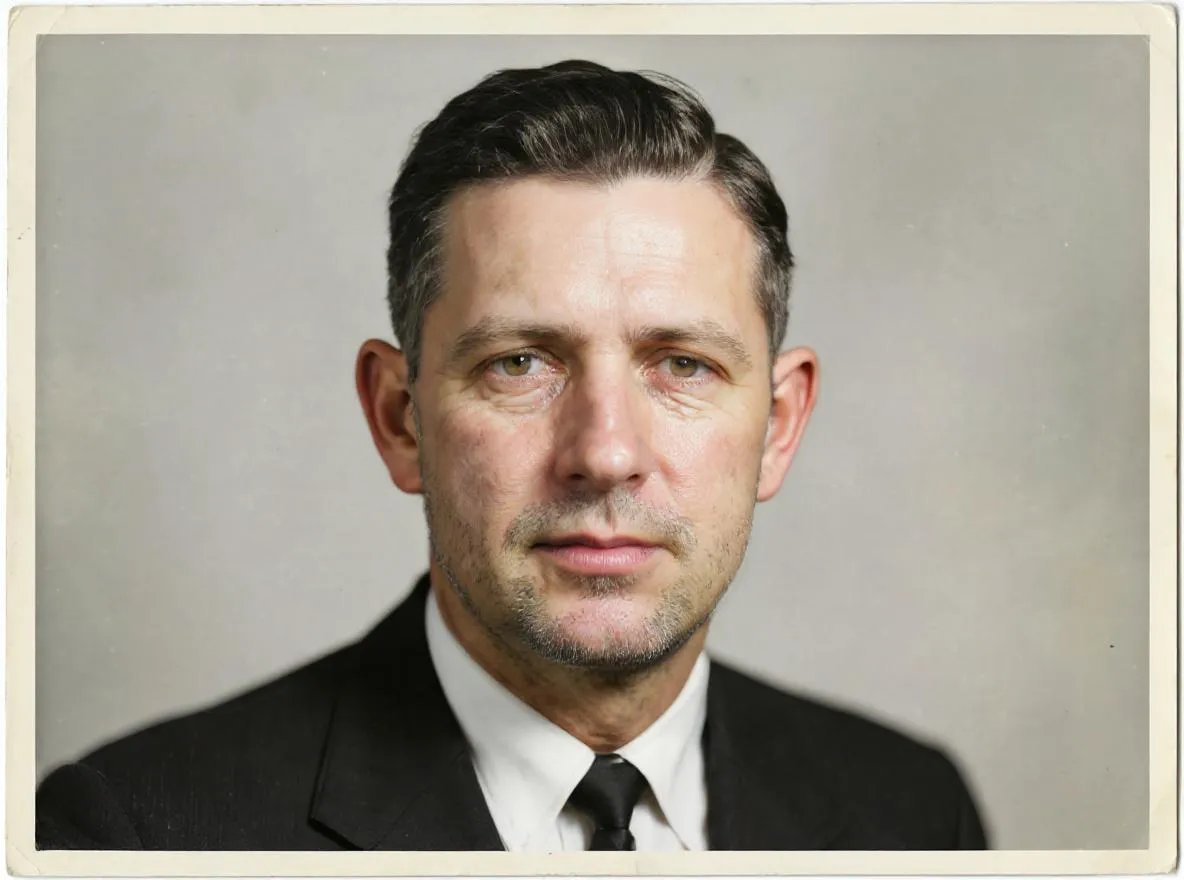 After
Enhancement
How to Unblur a Face in an Old Photo
Sharpen blurry faces in old portraits and group photos with AI. How face enhancement works, how to get the best result and how to check it's still them.
Scanning technique
How to Scan Old Photos with Your Phone Without Glare
Lighting tricks, angle secrets and lens cleaning practices for getting flatbed scanner quality from your smartphone.