
Restoration
Restore Old Photos Free (DIY) or With AI: Which to Choose
By the Retrocap Team · Updated
TL;DR
You can restore old photos free of charge by scanning them and making careful edits in a free photo editor, though it takes time and works best on light damage. AI restoration can save effort on heavier damage, but it uses credits. Retrocap is free to download, and its processing uses credits, available through a subscription or one-time token packs.
You can restore old photos free of charge by doing the work yourself: scan the print, then fix it step by step in a free photo editor. It works well for light damage. For heavier damage, an AI tool can save you a lot of effort.
This guide covers both routes honestly, so you can pick the one that fits your photos and your patience.
What “free” really means for photo restoration
In this guide, “free” means doing the restoration yourself with an editor that costs nothing. Here are the two routes:
- DIY in a free editor: You pay with your time and effort, and you do the fixes by hand.
- AI restoration apps: You use credits or a plan to get speed and repairs that are hard to do by hand.
Retrocap belongs in the second group. It is free to download, but restoring a photo uses credits, which the app calls tokens. We’d rather say that plainly than let a headline suggest otherwise.
Start with a good scan (it costs nothing)
Whichever route you choose, the quality of your scan sets the ceiling for the result. A sharp, evenly lit copy gives better results than a dim, glary one.
You don’t need a scanner. Your phone camera is enough if you avoid glare and shadows. Our guide on how to scan old photos with your phone walks through the setup.
Before you scan, handle the print gently:
- Hold it by the edges and work on a clean, dry, flat surface.
- Don’t wet it, tape it, or try to clean it with household products.
- If the photo is fragile, stuck to other prints, or has mold, stop and ask a professional photo conservator. Valuable or irreplaceable originals belong in expert hands.
How to restore old photos free with a basic editor
Here is the manual route using any free photo editor, including the one already on your phone or computer. You can find more detail in how to restore old photos without Photoshop.
- Save a copy. Keep your original scan untouched and work on a duplicate.
- Crop and straighten. Trim away the table, the scanner edge and any curled borders.
- Fix brightness and contrast. Raise the exposure a little if the photo is dark. Add contrast gently to bring back depth in faded areas.
- Correct the color cast. Yellowed or reddish prints often improve when you adjust temperature or tint. For black and white photos, you can reduce saturation to remove a color tint.
- Remove dust and small marks. A spot-healing or clone tool, where your editor has one, copies nearby texture over specks and scratches. Work in small, zoomed-in dabs.
- Sharpen lightly. A touch of sharpening helps, but too much creates harsh edges and noise.
- Compare and save. Zoom out and compare with the original. Stop when it looks natural, not over-polished.
This approach has real strengths. You decide exactly what changes, and it costs nothing but your time.
It also has limits. Long tears, large missing areas, water stains and very pale photos can take a long time to repair by hand, and results depend on your skill. Rebuilding a damaged face is especially hard.
Free AI photo restoration: what to check first
If you try any free AI tool, check its limits and privacy terms first. A few questions are worth answering before you upload anything:
- What exactly is limited? Look at the number of photos, the output size and the features included.
- What happens to your photos? Read the privacy terms. Family photos are personal.
- Can you save and print the result? Check this before you spend time on it.
- Does it cover your kind of damage? Light fading is a very different job from a torn, stained print.
Terms can change, so read them again before each new project.
When it’s worth paying for restoration
Paying makes sense when the time saved matters more than the cost. These situations are common:
- Heavy damage: Long tears, creases, stains and several fold lines can take a long time by hand.
- Many photos: A shoebox of prints is a big project to do manually.
- Faces you care about: AI can help restore faces, but faces can change slightly, so always compare with the original.
- A deadline or a gift: A framed print for a birthday or a family gathering is easier when you aren’t doing every fix by hand.
If your photos only have light fading or a few dust specks, the free route is often enough. For a full overview of the process, see how to restore old photos: a complete beginner’s guide.
How restoring with Retrocap works
Retrocap is an AI photo restoration app for iPhone and Android. Here is the basic flow:
- Open the Restore tool and choose your photo.
- Pick a restoration level. Standard suits light or moderate damage, such as mild fading, small scratches or a single clean tear. Deep is for heavy damage, such as long tears, several pieces, creases, stains, very pale photos or a strong color cast. Starting with Standard and switching to Deep if needed is a sensible approach.
- Turn on the options you need: Fix Scratches & Tears, Enhance Faces or Remove Stains.
- Wait for the result. It usually takes seconds, and the site says usually under a minute.
- Compare the result with the original using before/after, then save it to your photo library or share it.
Retrocap needs an internet connection, since photos are processed on cloud servers rather than on your phone. Your photos are used only to create your results, they’re sent securely to an AI processing partner, and they’re never sold. You can delete your photos and data from the app at any time.
Photo restoration with no subscription
If you don’t want a recurring plan, you still have an option. Retrocap credits come with a weekly or yearly subscription, or with one-time token packs bought in the app. Token packs are a one-time option that doesn’t require a subscription.
We don’t list prices here because they vary by country and can change. If you plan to colorize many photos, note that the yearly plan includes unlimited colorization.
What AI can and can’t do
Whether you pay or not, keep your expectations realistic:
- AI rebuilds missing areas from the surrounding detail. If a part of the photo is completely gone, such as a lost face, it can’t always be recovered.
- Faces can change slightly, especially very small or very blurry ones. Always compare with the original.
- Colorization is an interpretation. Original colors were never recorded, so the result is realistic, not a historical record. See our guide to colorizing black and white photos for tips.
A note on respect
Many old photos show people who can’t say how they’d like to be remembered, or who are no longer with us. Restore them with care, and ask before sharing photos of living relatives. Restoration is for preserving memories, not for faking documents or altering evidence.
A simple way to decide
Try the free route first on a photo with light damage. If you enjoy it and the result looks natural, carry on. If you find yourself spending an afternoon on a single tear, or the face just won’t come back right, that is a good moment to try an AI tool.
When you’re ready, you can try Retrocap on one photo and see whether it suits your collection.
Frequently asked questions
Does Retrocap restore photos for free?
No. Retrocap is free to download, but restoring, colorizing, enhancing and animating photos uses credits (called tokens in the app).
Can I use Retrocap without a subscription?
Yes. Besides weekly and yearly subscriptions, you can buy one-time token packs in the app. Prices vary by country and can change.
Can I restore old photos for free on my phone?
You can make basic fixes with your phone's built-in photo editor, such as cropping, brightness, contrast and color tweaks. Repairing tears, stains and scratches by hand needs a more capable editor and patience.
Is free AI photo restoration really free?
That depends on the tool. If you try any free AI tool, check its limits and privacy terms before you upload family photos. Retrocap itself is free to download, but processing uses credits.
Does Retrocap work offline?
No. Retrocap needs an internet connection because photos are processed on cloud servers, not on your phone.
Related guides
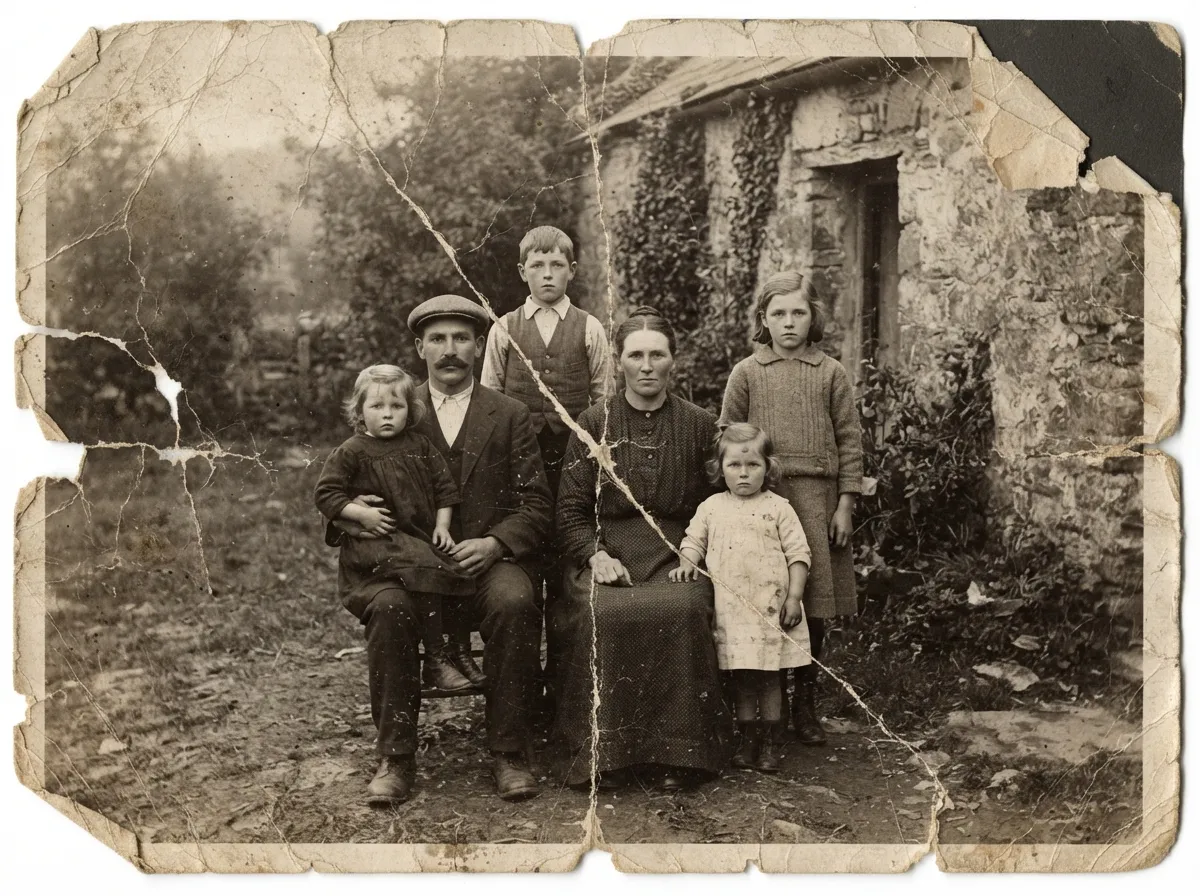 Before
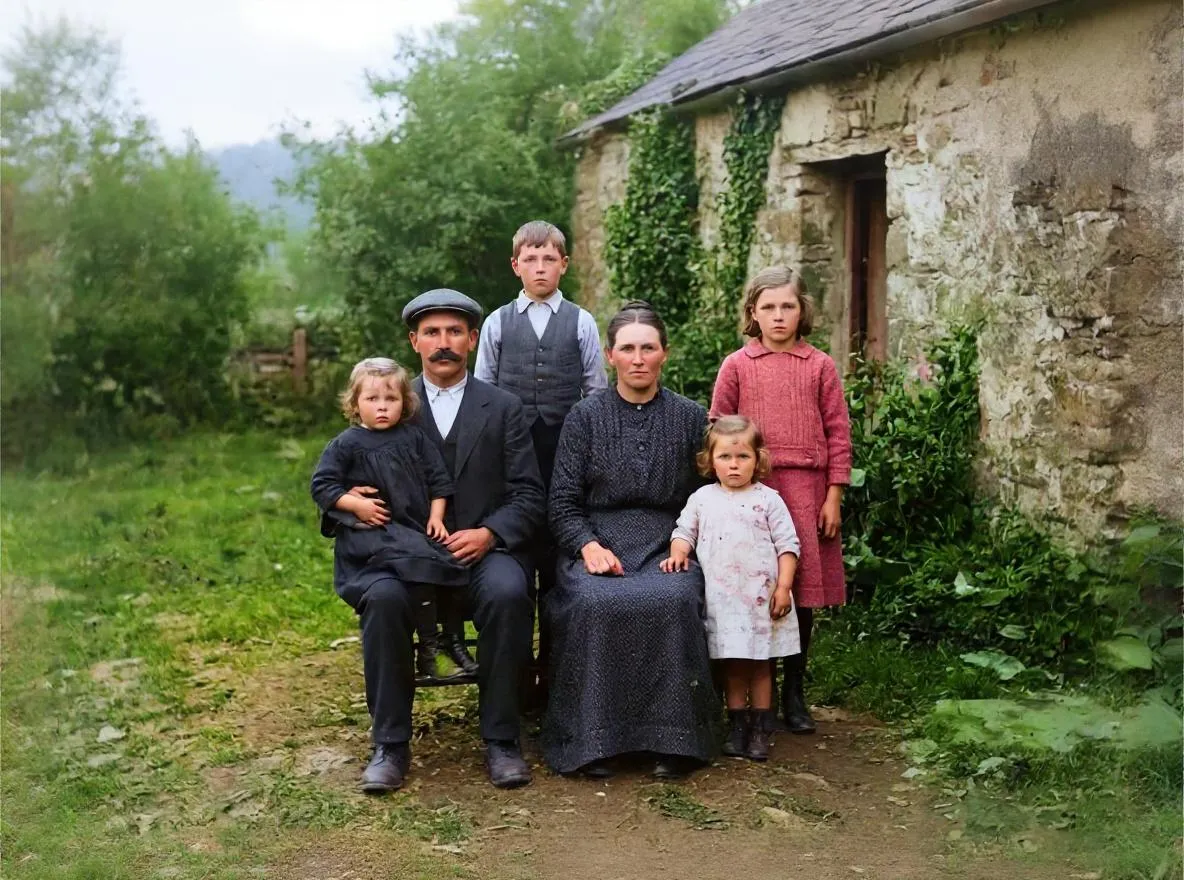 After
Basics
How to Restore Old Photos Without Photoshop
No Photoshop skills needed. Compare AI apps, Photoshop and professional restorers by time, cost and results, and follow a simple no-Photoshop workflow.
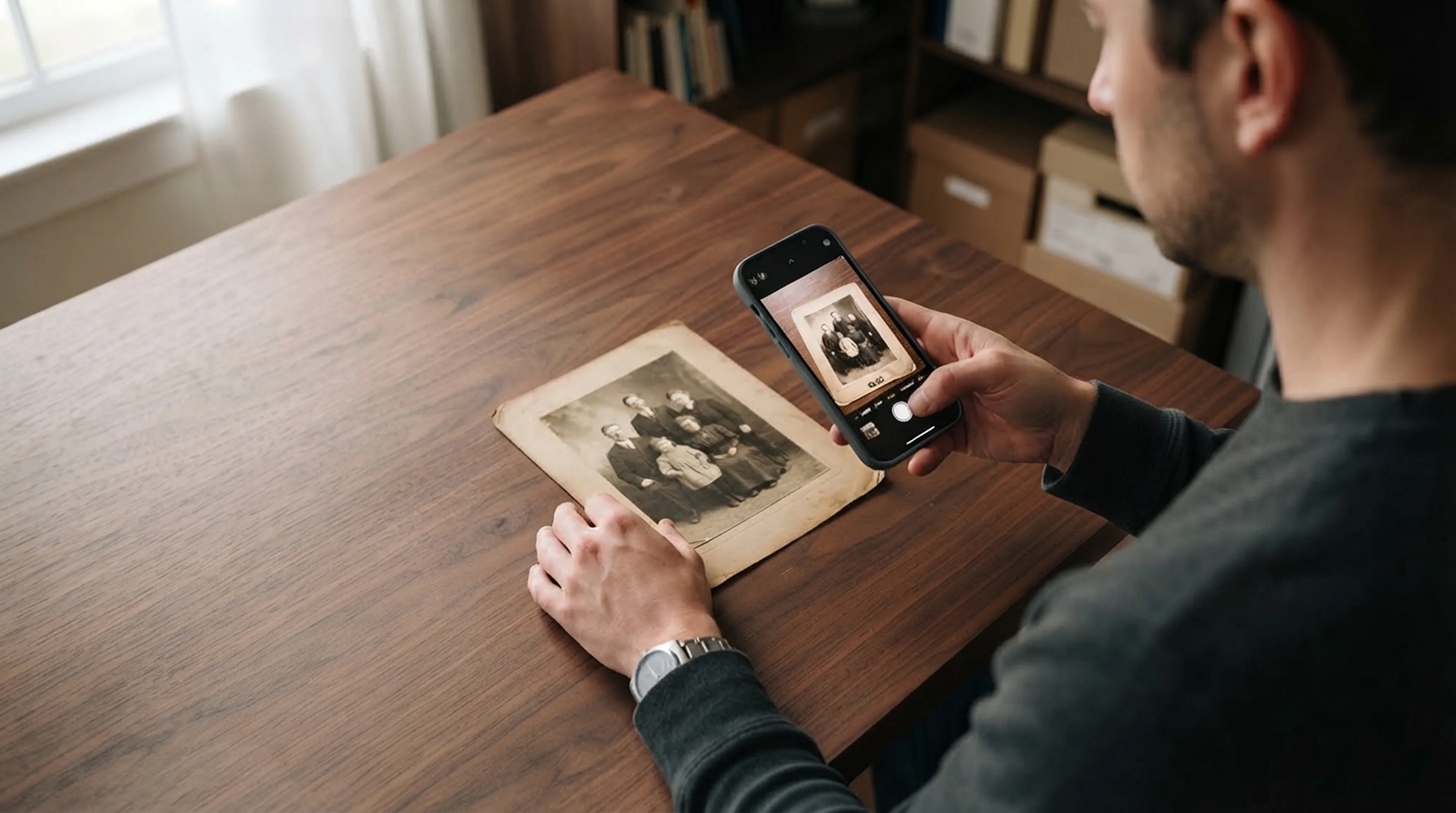
Scanning technique
How to Scan Old Photos with Your Phone Without Glare
Lighting tricks, angle secrets and lens cleaning practices for getting flatbed scanner quality from your smartphone.
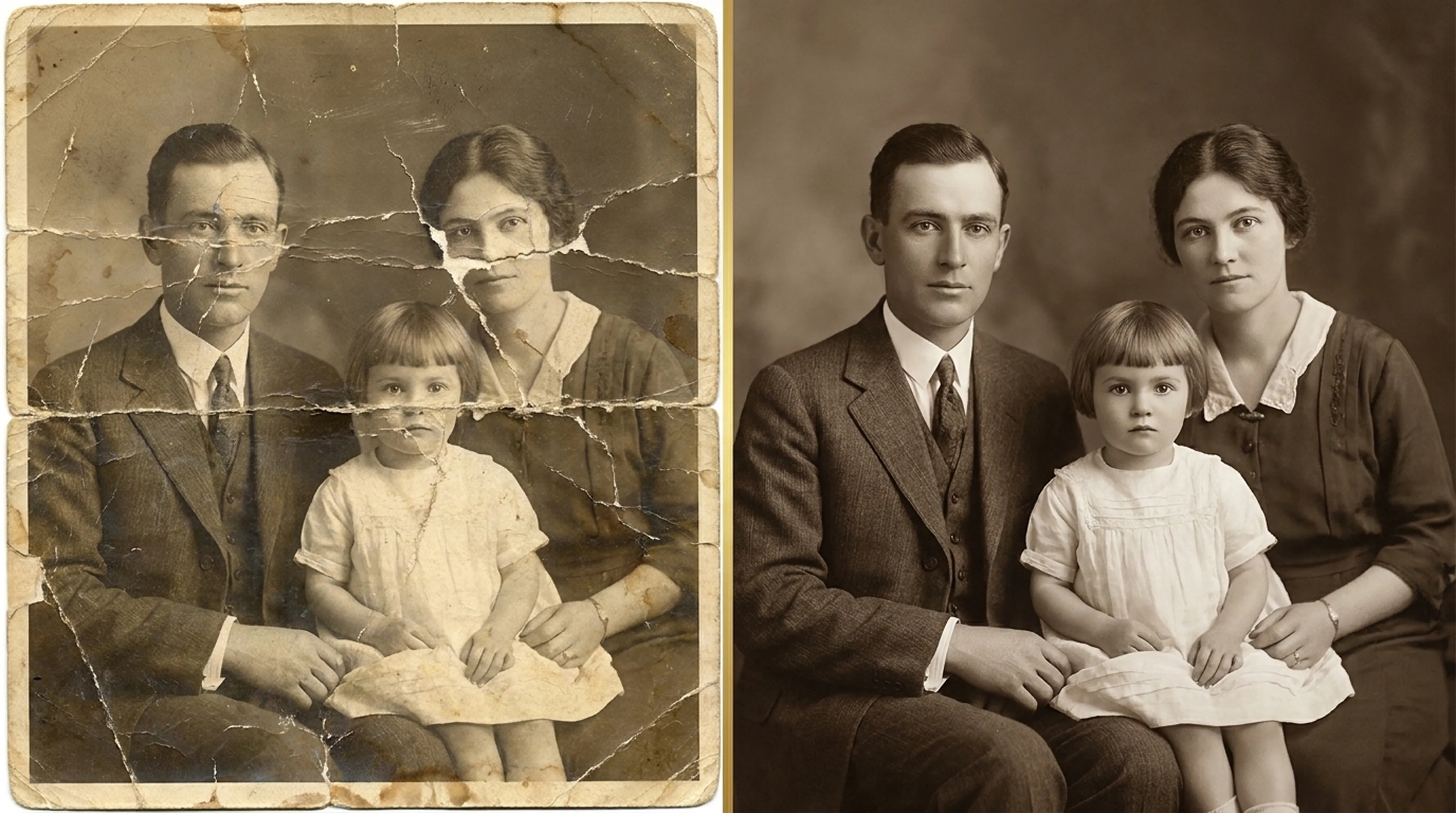
Beginner guide
How to Restore Old Photos: A Complete Beginner’s Guide
Step-by-step instructions on handling vintage prints, digitizing delicate negatives and using AI tools safely.